ImmiAccount Guide: How to Create and Manage Your Account
Updated: 18 May 2026
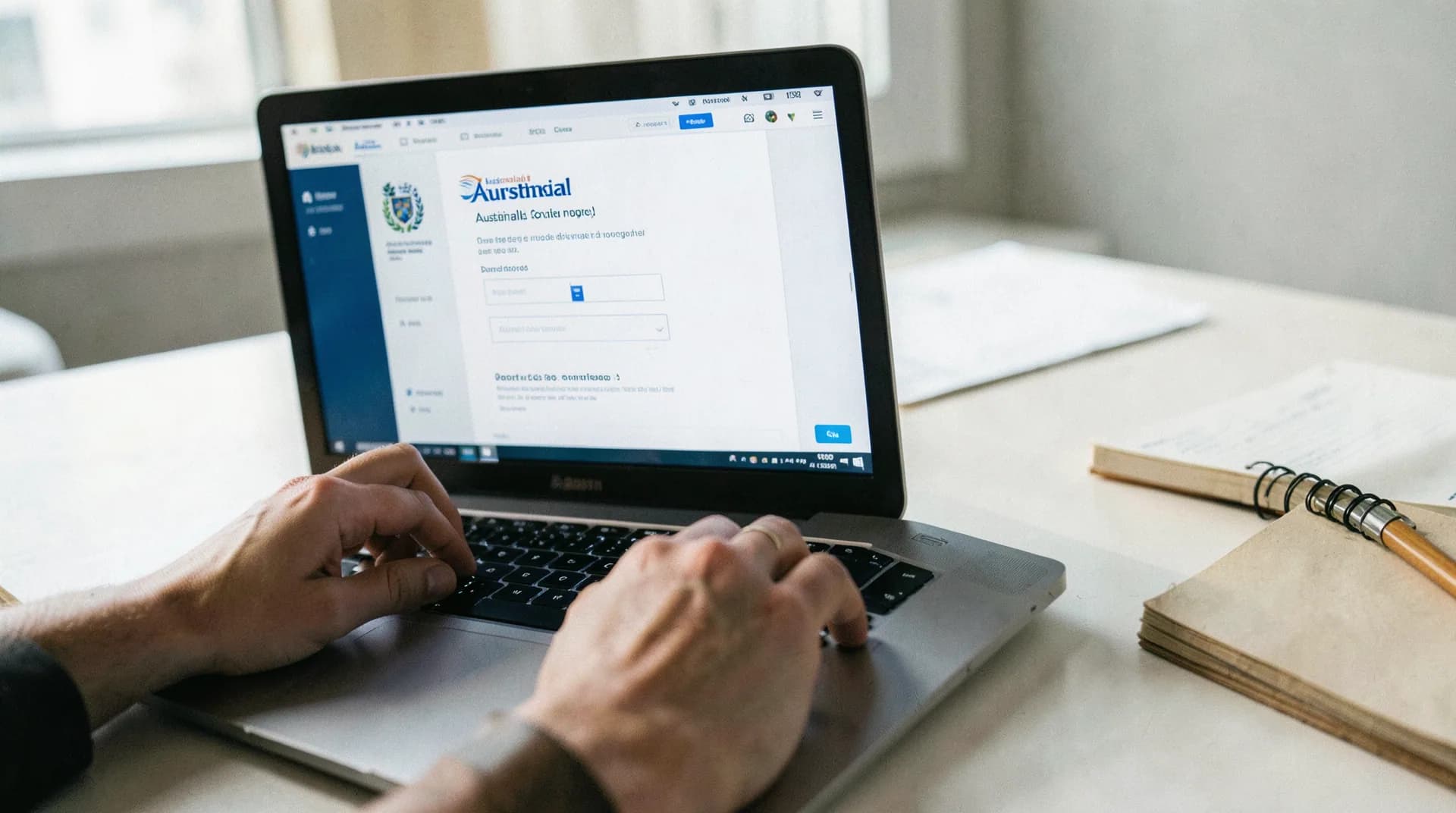
ImmiAccount is the Department of Home Affairs online portal at online.immi.gov.au, free to create and required for most Australian visa subclasses in 2026. ImmiAccount is Australia's official immigration online system, operated by the Department of Home Affairs. Available 24/7 in Chrome, Firefox and Edge, it is used to lodge applications, upload supporting documents, pay fees, and track application status. Sessions time out after 20-30 minutes of inactivity, so saving progress regularly is essential.
Quick Facts: ImmiAccount
| Detail | Information |
|---|---|
| URL | online.immi.gov.au |
| Cost | Free to create |
| Required For | Most Australian visa applications |
| Access | 24/7 online |
| Support | Department of Home Affairs helpline |
| Browser | Chrome, Firefox, Edge recommended |
| Timeout | Sessions expire after inactivity |
Creating Your ImmiAccount
Step-by-Step Registration
- Go to online.immi.gov.au and click "Create ImmiAccount"
- Select whether you're an individual applicant or an organisation
- Enter your details:
- Family name (surname) — exactly as it appears on your passport
- Given names — exactly as on your passport
- Phone number with country code
- Email address (use one you check regularly)
- Create your login credentials:
- Username (or use your email address)
- Password (must meet complexity requirements: minimum 9 characters, mix of upper/lowercase, numbers, and special characters)
- Set up security questions (you'll need these if you forget your password)
- Accept the terms of use
- Verify your email by clicking the link sent to your inbox
Account Creation Tips
Name accuracy matters: Your ImmiAccount name must match your passport exactly. If your passport says "ZHANG Wei" and you register as "Wei Zhang," this can cause processing issues. Use the same format as your passport's machine-readable zone.
Email address: Use a personal email you'll have access to for years — not a work email you might lose access to if you change jobs. The Department sends important notifications here.
Password management: Write down or securely store your password and security question answers. Account recovery can be time-consuming if you're locked out.
One account per person: Don't create multiple ImmiAccount profiles. If you've applied for an Australian visa before, you may already have an account. Try the "forgot password" function before creating a new one.
Navigating ImmiAccount
The Dashboard
After logging in, your dashboard shows:
- My applications: All visa applications linked to your account
- New application: Start a new visa application
- Import application: Link an existing application to your account
- Messages: Communications from the Department
Starting a New Application
- Click "New application"
- Select the visa category (e.g., "Work," "Visit," "Study," "Family")
- Select the specific visa subclass
- The system guides you through the application form in sections
You don't need to complete the application in one session. ImmiAccount saves your progress, and you can return to complete it later.
Application Sections
Most visa applications are divided into sections:
- Applicant details: Personal information, passport details, contact information
- Critical dates: Travel dates, course dates, employment start dates
- Additional applicants: Family members included in your application
- Health: Health declaration questions
- Character: Character declaration questions
- Documents: Upload supporting documents
- Payment: Fee payment
- Declaration and submit: Final confirmation and submission
Saving Progress
ImmiAccount auto-saves as you move between sections, but it's good practice to click "Save" regularly — especially before the session times out. Timed-out sessions can lose unsaved work.
Uploading Documents
Document Requirements
- Format: PDF is strongly recommended. JPG and PNG are accepted for some documents.
- File size: Maximum 5MB per file (this limit applies to most visa types)
- Total size: Usually 60MB maximum across all uploaded documents
- Colour: Scan in colour where possible
- Resolution: Minimum 300 DPI for readability
- Quality: Documents must be clear, legible, and complete (all pages)
How to Upload
- Navigate to the "Attach documents" section of your application
- Click "Attach document"
- Select the document type from the dropdown menu (e.g., "Passport," "Bank statement," "Employment reference")
- Add a description (optional but helpful)
- Choose your file
- Click "Attach"
- Repeat for all documents
Upload Tips
Compress large files: If your PDF exceeds 5MB, use a PDF compression tool. Most bank statements and scanned documents can be compressed without losing readability.
Name files clearly: "Passport_Front_JohnSmith.pdf" is much easier to identify than "IMG_20260315_001.jpg" — both for you and for the case officer reviewing your application.
Combine related pages: Multi-page documents (bank statements, employment references) should be combined into single PDF files rather than uploaded as individual pages.
Upload everything at once: While you can add documents later, it's best to upload everything when you submit. This avoids delays caused by the Department waiting for outstanding documents.
Adding Documents After Submission
If you need to upload additional documents after submitting your application:
- Log into ImmiAccount
- Click on your application
- Select "Attach documents"
- Upload the new document
- The Department will see the new attachment
This is also how you respond to requests for additional information.
Tracking Your Application
Application Status
Your application will show one of these statuses:
- Draft: Started but not submitted
- Submitted: Lodged and payment received
- Further assessment: Under active review
- Information requested: The Department needs something from you
- Finalised: A decision has been made (check messages for grant or refusal)
Response Timeframes
When the Department requests additional information, they set a deadline — typically 28 days, but this varies. The deadline is shown in the request. Missing the deadline can result in a decision being made without the requested information, which usually means refusal.
VEVO
Visa Entitlement Verification Online (VEVO) is a separate tool that lets you check your current visa status, conditions, and expiry date. Access it at vevo.homeaffairs.gov.au with your passport details and date of birth (or your VEVO grant number).
Managing Multiple Applications
If you've applied for multiple visas (e.g., a student visa previously and now a skilled visa), all applications appear in your ImmiAccount dashboard. Each application has its own TRN and status.
If you applied for a visa before ImmiAccount existed (or through a different system), you can import that application into your current account using the "Import application" function with your TRN and other identifying details.
Common Errors and How to Fix Them
"Session Expired"
ImmiAccount times out after a period of inactivity (usually 20-30 minutes). Your work should be auto-saved, but if it's not:
- Log back in
- Navigate to "My applications"
- Open your draft application
- Continue from where you left off
Prevention: Save your progress regularly and don't leave the tab inactive for extended periods.
"Payment Failed"
Common causes:
- Credit card limit exceeded
- International transaction blocked by your bank
- Temporary system issues
Fix: Contact your bank to authorize international transactions to the Australian government. Try a different card. Wait and try again if it's a system issue.
"Document Upload Failed"
Common causes:
- File exceeds 5MB
- Unsupported file format
- System overload
Fix: Compress your file, convert to PDF, or try at a different time (Australian business hours can be busier).
"Name Mismatch"
If your passport name doesn't match what you entered in ImmiAccount:
Fix: You generally cannot change the name on a submitted application yourself. Contact the Department of Home Affairs to request a correction. Provide evidence (passport copy) to support the change.
"Forgot Password"
- Click "Forgot your password?" on the login page
- Enter your username or email
- Answer your security questions
- Reset your password via the email link
If you've forgotten both your password and security answers, you'll need to contact the Department's technical support for account recovery.
"Application Not Visible"
If you can't see a previously submitted application:
- Ensure you're logged into the correct ImmiAccount
- Check if the application was submitted under a different email
- Use the "Import application" function with your TRN
Security Best Practices
- Use a strong, unique password (don't reuse passwords from other sites)
- Don't share your ImmiAccount login with anyone except your registered migration agent
- Log out after each session, especially on shared computers
- Keep your email account secure (it's the gateway to password resets)
- Be wary of phishing emails — the Department will never ask for your password via email
Using ImmiAccount with a Migration Agent
If you've engaged a registered migration agent, they can:
- Lodge applications on your behalf through their own ImmiAccount
- Manage document uploads and correspondence
- Track your application status
Your agent will have their own professional ImmiAccount. You can still access your personal ImmiAccount to view your application, but any actions should be coordinated with your agent to avoid confusion.
Troubleshooting and Advanced ImmiAccount Help
Ran into trouble with ImmiAccount? These step-by-step guides cover the most common issues we see:
- Locked out or forgotten password? See ImmiAccount Password Reset and Locked Account: Step-by-Step Recovery. Covers the 4-hour auto-unlock rule, MFA fixes, and how to escalate via the official Technical Support Form.
- Need to link an application your migration agent lodged for you? See ImmiAccount: How to Link an Existing Application (TRN, Receipt Number). Covers TRN linking, Receipt Number linking, and the migration-agent special case.
- Got an error message? See ImmiAccount Error Codes Explained: What Each Message Means and How to Fix It. Covers login, MFA, payment, session, document upload, and application errors.
Frequently Asked Questions
Is ImmiAccount free to use?
Yes. Creating and using ImmiAccount is free. You only pay when you submit a visa application (the visa application charge).
Can I apply for all Australian visas through ImmiAccount?
Most visas are applied for through ImmiAccount. A few exceptions exist — some visas can only be applied for in person at an Australian Embassy or Consulate, or through specific programs. The ETA, for example, uses its own app rather than ImmiAccount.
Can I have two ImmiAccount profiles?
You shouldn't. One person should have one ImmiAccount. Multiple accounts can cause confusion and processing issues. If you already have an account from a previous application, use that one.
What browsers work best with ImmiAccount?
Google Chrome and Mozilla Firefox work most reliably. Microsoft Edge is also supported. Avoid using very old browser versions, and make sure JavaScript and cookies are enabled.
Can I access ImmiAccount from my phone?
Yes, ImmiAccount is accessible from mobile browsers, though the experience is better on a desktop or laptop due to the complexity of the forms and the need to upload documents. For document uploads in particular, a computer with access to your files is more practical.
What happens if the system is down?
ImmiAccount occasionally goes offline for maintenance (usually on weekends, Australian time). If you encounter an outage, wait and try again later. Scheduled maintenance is usually announced on the Department of Home Affairs website.